Product Sync
Prefer to see it in action? Open the guided walkthrough — an animated, click-by-click tour you can play automatically or step through yourself.
Product Sync turns your Shopify products into Amazon listings. You choose which marketplaces to publish to, make sure each product has the fields Amazon requires, review the Amazon attributes and fee estimate, then push. Product Sync is available on the paid plans.
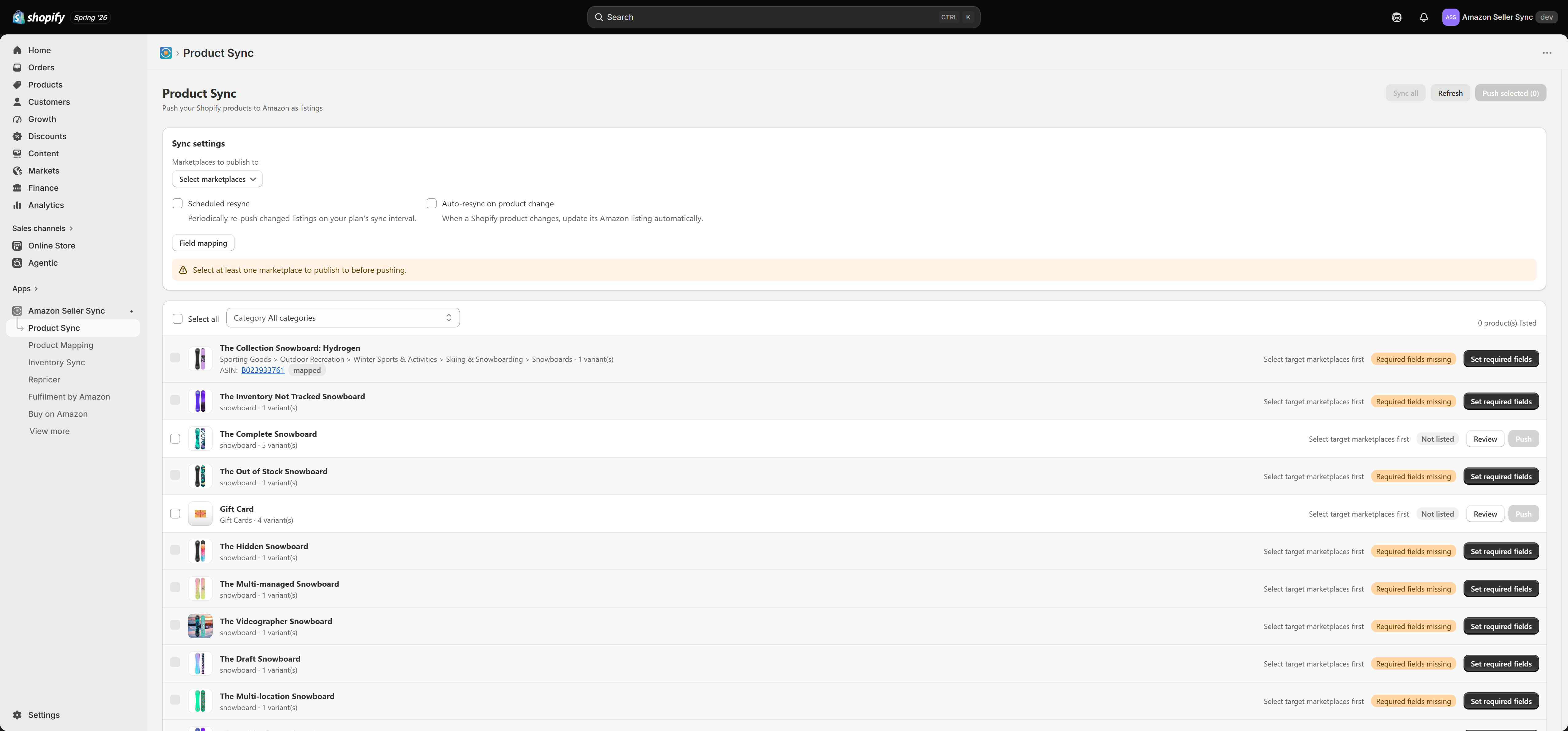
Sync settings
The settings card at the top controls how publishing works:
- Marketplaces to publish to — choose one or more Amazon marketplaces. You must select at least one before you can push.
- Scheduled resync — periodically re-push changed listings on your plan's sync interval, so edits in Shopify flow to Amazon on a schedule.
- Auto-resync on product change — when a Shopify product changes, update its Amazon listing automatically. This is available on the higher plans.
- Field mapping — set how Shopify fields map to Amazon attributes across your catalogue.
The product list
Below the settings is your product list. Filter by category, use Select all to act in bulk, and read each row's status on the right. Each product shows its image, title, Amazon category path, variant count, and — if mapped — its ASIN.
Required fields must be set in Shopify first
Amazon requires certain fields on every listing (for example a description and a brand). If a product is missing any of them, its row shows Required fields missing and a Set required fields button instead of a push action, and the product cannot be selected for a bulk push.
This is deliberate: those fields have to be filled in and saved on the Shopify side first, so your Shopify product and Amazon listing stay the single source of truth. Open the product, complete the required fields in the Shopify column, save, and the rest of the tools unlock.
On the product detail page, a banner lists exactly which mandatory fields are still missing. Until they are filled and saved, the AI tools, Apply and Save, Push, and the Amazon-side inputs stay locked — only the Shopify fields and Save to Shopify remain active.
Reviewing and pushing a product
Select Review on a product to open its detail page. There you can:
- Choose the target marketplace and confirm the resolved Amazon product type.
- Fill in the Amazon attributes, copying from your Shopify fields or entering values directly. List-style fields such as country of origin are dropdowns.
- Use the AI tools to translate, spell-check, and SEO-optimise your title, description, and bullet points (subject to your plan and AI add-ons).
- See a live fee estimate for the marketplace — referral and fulfilment fees, and your estimated net.
- Apply and Save the Amazon overrides, then Push to create or update the listing.
Once a product is listed, its row shows the listing status and any Amazon issues, and you can re-push or unpublish it.
Pushing in bulk
When products are ready (required fields set and a target marketplace chosen), tick them and use Push selected, or Sync all to push everything eligible. Refresh reloads the list and the latest Amazon statuses.
Your plan sets how many listings you can keep synced. If you go over the limit — for example after a downgrade — the app keeps your most recently updated listings active and pauses the rest. See Managing your plan.
Fixing listing issues
Amazon may reject or flag a listing (for example a missing attribute or an invalid value). Those issues appear on the product detail page and in the Home dashboard Sync health view, each with a message so you can correct the value in Shopify and re-push.